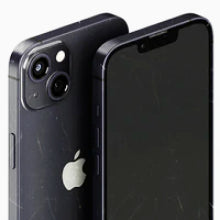


connecting both devices using a cable or the Move to iOS app, transferring accounts and media, and adjusting service settings. Completing these steps in order prevents data loss and preserves your message history.
Planning to switch from Samsung to iPhone in Australia? Most problems happen around the transfer rather than during it: texts that stop arriving, authenticator codes left behind on the old phone, and a Galaxy that locks after a reset. We help customers choose refurbished iPhones, and this guide covers every stage of the switch, from backing up and moving your data to wiping your Galaxy safely for resale or trade-in. It also works as a Move to iOS app guide, with the screens to expect during setup.
Key steps for moving from Samsung to iPhone
To use Move to iOS, your iPhone must be new or reset to the setup screen. Keep your Samsung Galaxy intact until you have confirmed that the transfer is complete.
Here are the key steps to follow when switching from Galaxy to iPhone in 2026:
-
Back up photos, contacts, and app data to cloud storage before you start the physical transfer.
-
Check that all the content you want to transfer, including content stored on an external microSD card, will fit on your new iPhone.
-
Make sure both devices are fully charged and connected to power.
-
Connect both smartphones to the same private Wi-Fi network or connect them with a USB-C cable during setup.
-
Make sure your iPhone is turned on and place it close to your Samsung Galaxy. Follow the on-screen setup instructions on your iPhone.
-
When you come to your iPhone’s Transfer Your Apps and Data screen, tap 'From Android'.
-
Choose the Move to iOS app, or use the QR code transfer option if your Samsung phone is running a compatible version of Android 17 or later.
-
If you choose the Move to iOS app, your iPhone will display a six- or 10-digit code that you need to type into your Samsung device when prompted.
-
Select WhatsApp on the Transfer Data screen during the Move to iOS process to migrate your chat history.
-
On your Samsung phone, choose the data you want to move, then tap Continue to transfer it to your iPhone.
-
Leave both devices alone until the transfer is done, and make sure all your data has carried over. Remember that transferring data across can take a while, particularly if you have a lot of files (or large ones).
-
Turn off RCS chats in Samsung Messages or Google Messages before you move your SIM, so texts sent to your number reach your iPhone.
-
Once the transfer is done, activate your SIM or eSIM and phone number on your iPhone.
-
Confirm your transfer is complete before erasing your Samsung Galaxy. Use the standard factory data reset option in Settings, and remove your personal accounts where appropriate before handing over the device.
Essential pre-migration checklist: Cloud backups, 2FA codes and eSIM transfers

Switching from a Samsung Galaxy to an iPhone in Australia takes more than just transferring your photos and contacts. It is a process that involves reviewing personal information, managing account permissions, and adjusting how your apps and cloud services work.
Back up important data before moving from Android to iPhone, as mobile phone data can be lost during repairs.
Check how your password manager and authenticator apps store and transfer credentials before switching phones. Transfer verification codes using the instructions for your specific authenticator app, and confirm that you can access important accounts on your new iPhone. If you use an eSIM, check with your carrier before you start. Depending on the carrier, you may be able to transfer the eSIM during iPhone setup, or you may need a new eSIM from the carrier's app or store. Keep your Samsung active until the eSIM works on your iPhone. Always ensure you review personal information and location settings when setting up a new device.
Exporting authenticator keys and mobile banking credentials
Switching from Galaxy to iPhone in 2026 requires separate handling for authenticator keys and mobile banking credentials because these apps store data differently.
Google Authenticator
If your Authenticator codes are synced to your Google Account, install Google Authenticator on your new iPhone and sign in with the same Google Account to sync them automatically. If you use Google Authenticator without account sync, open the app on your Samsung device, navigate to Transfer codes > Export codes, and generate a QR code. Before you wipe your Samsung phone, open Google Authenticator on your iPhone, select Transfer codes > Import codes, and scan this QR code to transfer your tokens.
Microsoft Authenticator backups can only be restored to the same device type, so you cannot directly restore an Android backup on an iPhone. Follow Microsoft's recovery instructions and re-register accounts or credentials when required.
Mobile banking credentials
Banking apps use different security and device-registration processes, so follow your bank's instructions to activate the app on your new iPhone. Make sure you maintain active SIM service in the old handset until all secondary security verifications are complete.
OzMobiles offers high-quality refurbished iPhones in Australia, giving you plenty of variety when switching from Samsung to iPhone.
How to transfer Galaxy data, photos, and WhatsApp chats using Move to iOS
To use Move to iOS, your iPhone needs to be new or reset to the setup screen. Keep your Samsung Galaxy intact until you have confirmed the transfer is complete. On supported Android 17 devices, Apple also supports transferring without the Move to iOS app.
Here is a quick step-by-step guide to transferring data from your Samsung to your iPhone using Move to iOS:
1. Prepare your devices
Power on the new iPhone and select 'Set Up Without Another Device' to find the 'From Android' option. On your Samsung Galaxy, download and open the Move to iOS app and accept the terms. Ensure both devices are connected to Wi-Fi.
2. Connect your devices
Open Move to iOS on the Samsung Galaxy and enter the six- or 10-digit code displayed on the iPhone. Wait for the Data Transfer screen to appear.
3. Select the data you want to keep
Select the data you want to keep, including your contacts, message history, and free App Store apps. Then tap Continue on your Samsung to start the transfer. Keep both devices close together until the progress bar completes.
Migrating WhatsApp chats directly from Android to iOS
For Android-to-iPhone transfers, WhatsApp requires using Move to iOS during initial iPhone setup. Your iPhone must be new or factory reset. Select WhatsApp on the Move to iOS Transfer Data screen to prepare and transfer your chat history. Once the iPhone setup is complete, install WhatsApp on your iPhone and sign in using the same phone number to complete the migration.

Model matching guide: Selecting the ideal refurbished iPhone for Samsung users
|
Current Samsung Model |
iPhone to Compare |
Key Hardware Benefit |
Value Proposition |
|
Galaxy S20 / S21 Series |
Refurbished iPhone 13 |
A15 Bionic performance & OLED display |
Cost-effective entry into iOS |
|
Galaxy S22 / S23 Series |
Refurbished iPhone 14 Series |
Action Mode & enhanced camera systems |
High performance at a lower cost |
|
Galaxy S24 / S24 Ultra |
Refurbished iPhone 15 Series |
USB-C port & Dynamic Island on all models |
Modern flagship experience |
How to avoid Factory Reset Protection issues and erase your Samsung Galaxy safely
Factory Reset Protection (FRP) is a built-in security feature that requires Google account verification after certain factory reset methods. Before selling or trading in your Samsung, confirm your data transfer is complete, remove your personal accounts where appropriate, then use Settings > General management > Reset > Factory data reset to erase the device safely.
Learn more about OzMobiles testing and warranty procedures.
Post-migration setup: Customising iOS settings for former Android users
Customising your new iOS settings can help bridge the gap between Android and iOS by mimicking familiar navigation and layout preferences.
Adjusting gesture navigation and Control Centre preferences
On iPhones with Face ID, navigation relies mainly on gestures rather than a physical Home button. Swipe up from the bottom edge of the screen to go home, or swipe up and pause slightly to open recent apps. Swiping from the left edge works to go back in many apps, though navigation can vary by app. Swipe down from the top-right corner to open Control Centre and adjust settings such as Wi-Fi, volume, and brightness.
Setting up default apps, browser preferences, and Google service syncing
You can download apps such as Gmail, Firefox and Chrome from the App Store, then select supported apps as defaults under Settings > Apps > Default Apps. You can also sync your Google contacts, calendars, and notes by going to Settings > Apps > Mail (or Calendar), selecting Accounts > Add Account, and signing in to your Google Account.
Models like the refurbished iPhone 14 series and refurbished iPhone 15 series are worth comparing if you are moving from Android. Every iPhone 15 model also uses USB-C, the same charging port as recent Galaxy phones.
Completing your switch to iOS confidently with OzMobiles

Switching from Samsung to iPhone in Australia goes more smoothly when you complete the setup steps in order. Once the process is complete, review the transfer steps to confirm all media and contacts migrated successfully.
Buying refurbished is an affordable way to make the move from Android to iPhone. The OzMobiles Battery Health Guarantee ensures that, upon arrival, your iPhone will have anywhere from 80% to 100% of its original battery capacity. If it falls below 80% during your 12-month warranty period, we will repair or replace it under the warranty terms.
The best refurbished iPhone for Android switchers depends on your budget, storage needs and the features you use most. OzMobiles stocks tested refurbished phones across major brands.
Ready to make the switch? Explore our certified range of refurbished iPhones at OzMobiles today, backed by a 12-month warranty and a 30-day return policy. If you would rather stick with Android, you can browse our refurbished Samsung Galaxy phones.


