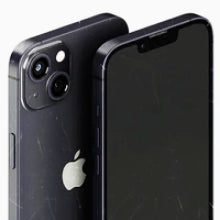


When it comes to tech, deciding between smartphone operating systems is one of the most pivotal moments in a person’s life. One of the few moments that come close is if you’re deciding to change from one device to another.
Although most people tend to stick with the same smartphone ecosystem, it doesn’t have to be a permanent, life-long decision. If you want to swap operating systems, you can do so. With recent upgrades to smartphone firmware, it’s easier than ever to convert from Samsung to iPhone.
If you’ve decided to move on from Samsung’s Android-based ecosystem for Apple’s iPhone-filled pastures, you’re in the right place. Our guide to changing from Android to iPhone will cover everything you need to know. This includes how to transfer data between the devices, setting up an iPhone, and adjusting to the new operating system.
Transferring Data From Android to iPhone
When Android and iPhones were first released, transferring data between them was difficult, but the process has since been improved and streamlined. It is now easier than ever before to convert from Samsung to iPhone. Below, we’ve outlined the steps for transferring data from an Android device to an iOS device (iPhone or iPad).
1. Download the ‘Move to iOS’ app from Google Play.
2. On your Android phone, make sure that Wi-Fi is turned on, and plug both your iOS and Android devices on charge.
a. Alternatively, instead of Wi-Fi, you can connect your Android and iPhone using a cable for a faster transfer.
3. Ensure there is enough space for all the content you’re moving (e.g., photos and videos) on your new iOS device.
4. Turn on your new Apple device and place it near your old Android phone.
5. On your Apple device, follow the onscreen setup instructions.
a. On the Quick Start screen, you’ll want to click “Set Up Without Another (Apple) Device)
6. During the setup process, you’ll have the option to ‘Transfer Your Apps & Data’ - select ‘From Android’.
7. On your Android device, you’ll want to open the Move to iOS app.
8. From here, read the terms and conditions that appear and click ‘Agree’ to continue.
9. The app will also ask for permissions, which you’ll need to enable if necessary.
a. If you’ve connected your Android device and iPhone with a cable instead of Wi-Fi, you may also get a pop-up about changing your USB settings.
10. Back on your iOS device, tap Continue when you see the Move from Android screen. You’ll then have to wait for a six or ten-digit code to appear.
11. Once the code appears, enter it on your Android device.
12. Your iOS device will then create a temporary Wi-Fi network, which, when asked, you’ll want to join the network on your Android device and then wait for the Transfer Data screen to appear.
13. Once the Transfer Data screen appears, you’ll be able to select all the content on your Android device that you want to transfer. Pick what you want transferred (e.g., Contacts and Messages), then tap ‘Continue’.
a. Please note that transferring data can take a while, depending on the size of the files/content you’re transferring.
14. Make sure you leave both devices alone until the transfer has finished. Some content, like PDFs and Apps, will need to be moved over manually.
Setting Up An iPhone

The process for setting up an iPhone is different from setting up a Samsung device or any Android smartphone. If you haven’t already, you will want to turn on your iPhone.
You can do this by pressing and holding the iPhone’s power button until you see the Apple logo. You’ll then see “Hello” in various languages. If you’re blind or have low vision, you can turn on VoiceOver or Zoom for assistance during the setup process.Next, you’ll be able to select your preferred size for all your text and icons. There are three different options: Default, Medium or Large. You’ll also have the option to preview the different sizes. Once you’ve selected your preferred size, tap Continue.
The next step of the process is choosing whether you’ll want to automatically set up your device with the ‘Quick Start’ feature. This setting will allow you to set up the device using a previous iOS device and automatically transfer apps, settings and features.Adjusting to An iPhone After Using an Android Phone
Moving to the iOS ecosystem after years of using an Android phone can be jarring. While they’re both smartphone operating systems, there are massive differences between both platforms when changing from Android to iPhone that will require adjusting. These differences include:
The App store
While there are many games and apps available on both iOS and Android, the App Store still doesn’t have everything Google Play has to offer. The interface for both stores is different, too.
Default browser
The default browser app on iOS is Safari. Any browser app can technically be installed (like Chrome), but you will need to download it from the App Store.
File Transferring
The file-transferring process for iPhones is different from Android. To convert from Samsung to iPhone, you’ll need to use an app to transfer media files.
Ecosystem and interface
One of the biggest differences you may notice when changing from Android to iPhone is the ecosystem and interface of the phone. iPhones are part of a ‘closed’ ecosystem, and there are no third-party app stores available. So, you won’t be able to install alternative app stores and third-party apps like you could Android. Unlike Android, which allows you to download other messaging apps, iPhones are usually reliant on Apple’s first-party messaging and call services. For the most part, you’ll have to get used to Apple’s iMessage and FaceTime. Another major difference between iOS and most Android devices is the lack of a dedicated ‘back’ button. Instead, you’ll have to rely on gestures, like swiping from the left edge of the screen to navigate back.
Many of the iPhone's unique features and differences from Android are easy to learn. While it may seem daunting at first, Apple has spent years optimising their user interface (UI) to be approachable and intuitive. The best tip we have for adjusting to the differences is to keep on persisting. The more you keep using your iPhone, the more you’ll get accustomed to its user interface. If there are any gestures that you find too hard to perform, it is possible to adjust them in the settings. If you have any issues adjusting to the differences, Apple also has User Guides available that explain all the different iPhone settings and UI.Buy The Latest iPhones at OzMobiles

For the best deals on second-hand phones, think OzMobiles. We pride ourselves on having the best prices for refurbished devices. If you find a better deal elsewhere, we’ll beat it by $10 (terms and conditions apply).
Whether you are changing from Android to iPhone or sticking with the same operating system, all the phones we sell, including our collection of refurbished Samsung mobiles and iPhones, come with a free 12-month warranty and a 30-day risk-free return policy. You can shop confidently with us, knowing that the OzMobiles team is only a call away if you have any concerns or a change of heart.If you have any questions about our refurbishment process or need help finding the right phone for you, contact us today. The OzMobiles team would love to hear from you and connect you with the right phone.


